Käyttöohje Targus THZ500ES VersaType Näppäimistö

Tarvitsetko käyttöoppaan Targus THZ500ES VersaType Näppäimistö? Alta voit katsoa ja ladata suomenkielisen PDF-oppaan ilmaiseksi. Tällä tuotteella on tällä hetkellä 2 usein kysyttyä kysymystä, 0 kommenttia ja 0 ääntä. Jos tämä ei ole haluamasi käyttöopas, ota meihin yhteyttä.

Onko tuotteessa vika, eikä käyttöoppaasta ole apua? Siirry Repair Café ‑alueelle etsimään ilmaisia korjauspalveluita.

Käyttöohje

Loading…
2
Targus Pivoting Bluetooth
®
Keyboard Case for iPad
®
Air 2
1
Targus Pivoting Bluetooth
®
Keyboard Case for iPad
®
Air 2
Introduction
Thank you for purchasing the Targus Pivoting Hard Shell Keyboard case
for iPad
®
Air 2. The keyboard uses Bluetooth
®
technology which provides a
seamless connection up to 33 feet (10m) away and features a pivoting screen
which allows you to adapt the case to a variety of functions.
Contents
• Pivoting Hard Shell Keyboard Case
• USB Charging Cable
System Requirements
Hardware
• iPad
®
Air 2
Establishing a Connection with iPad
®
Air 2
1. Switch on the Bluetooth keyboard. (Turn on the power by sliding the
ON/OFF switch to the right). The blue LED will remain lit for 3 minutes.
2. While the blue LED is lit, go to your iPad
®
’s Bluetooth
®
settings and select
“Targus Pivoting Keyboard”.
3. Enter the password that’s provided and press “enter”.
4. The Bluetooth
®
keyboard is now connected to your iPad
®
.
5. If the pairing process takes longer than 3 minutes and the blue LED turns
off, reset the power switch (“OFF” and “ON”) and follow steps 2 through 4.
Or manually press “Fn” + “Caps Lock”, wait for the blue LED to light and
then follow steps 2 through 4.
Reconnecting the iPad
®
Air 2
If another Bluetooth
®
device has recently been connected to your iPad
®
,
follow steps 1 and 2 to reconnect. The blue LED will remain lit while the
keyboard is reconnecting.
Charging the Bluetooth
®
Keyboard
The Bluetooth
®
Keyboard requires charging when the low battery red LED
beginsashing.
1. Connect the keyboard to a USB power source with the USB charging
cable.
2. The charging red LED will remain lit until the keyboard is fully charged.
3. Under normal conditions, the fully charged keyboard provides 130 hours
of battery life.
Bluetooth
®
Connection and Battery Charging
Indicators
Pairing-blueLEDashesuntilkeyboardispaired
Charging - red LED remains lit while charging
Low Battery - redLEDashesuntilchargingbegins
Troubleshooting Guide
• EnsuretheBluetooth
®
keyboard is fully charged.
• IftheredLEDstartsblinkingwhilethekeyboardisinuse,itisindicating
that the battery is low and needs to be charged.
• OnyouriPad
®
, click on the Bluetooth
®
icon within the system preferences
pane. Refer to the Apple Bluetooth
®
helpletoensureBluetooth
®
is
working properly.
• MakesuretherearenootherBluetooth
®
devices in close proximity.
• IfyouriPad
®
is connected to other Bluetooth
®
devices, you may need to
disconnect some devices before you can connect to the keyboard.
• Ifthekeyboardisstillnotrecognized,makesurethecorrectversionof
software is installed. Verify the iOS version for compatibility.
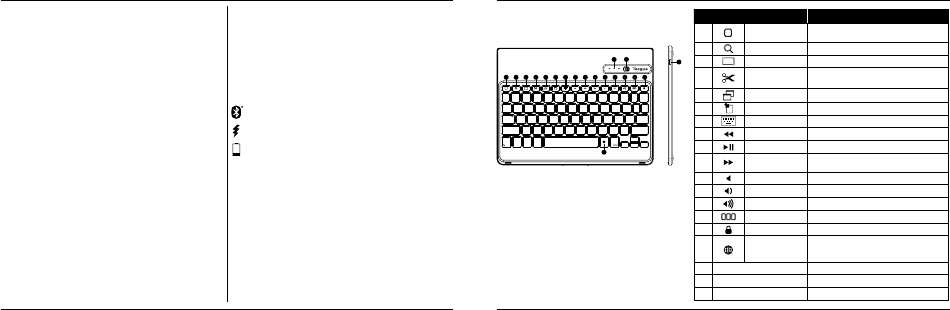
Hot Key functions
Key
Functions
1
Home Screen
Go back to the Home screen. Hold down to activate
Siri.
2
Search Search iPad
®
Air 2
3
Select all Select all
4
Cut
Removes the current selection and places it on the
Clipboard.
5
Copy Copy selected item(s) to the Clipboard.
6
Pae Pae copied item(s).
7
On Screen Keyboard Show and hide the keyboard on your display.
8
Previous Track Rewind or go to previous song, movie, or slideshow.
9
Play/Pause Play or pause songs, movies, or slideshows.
10
Next Track
Fa Forward or go to next song, movie, or
slideshow.
11
Mute Mute the sound on the iPad.
12
Volume Down Decrease the volume on the iPad.
13
Volume Up Increase the volume on the iPad.
14
Apps Display Display recently opened apps.
15
Lock Lock your display.
16
Language Shift
Select a display language. This feature is available only
when you have selected 2 languages or more in your
devices language settings.
17
Blue LED Indicators Indicates pairing / charging / low battery atus.
18
Power Switch Switch the Bluetooth keyboard between ON/OFF.
19
Micro USB Charger Port Connect to USB charging source.
1 2 3 4 5 6 7 8 9 10 11 12 13 14 15
16
17 18
19
Lataa käyttöohje suomalainen (PDF, 1.15 MB)
(Mieti ympäristöä ja tulosta tämä käyttöopas vain, jos se on todella tarpeen)

Loading…

Arviointi

Kerro meille mielipiteesi Targus THZ500ES VersaType Näppäimistö arvioimalla tuote. Haluatko jakaa tuotekokemuksesi tai kysyä kysymyksen? Jätä kommentti sivun alalaidassa.
Oletko tyytyväinen kohteeseen Targus THZ500ES VersaType Näppäimistö?
Kyllä Ei
Arvostele tuote ensimmäisenä
0 äänet

Keskustele tuotteesta

Täällä voit jakaa mielipiteesi Targus THZ500ES VersaType Näppäimistö:sta. Jos sinulla on kysyttävää, lue ensin huolellisesti käyttöohje. Käsikirjaa voi pyytää yhteydenottolomakkeellamme.

Lisää tästä ohjekirjasta

Ymmärrämme, että on mukavaa, että sinulla on paperikäyttöinen käyttöopas laitteellesi Targus THZ500ES VersaType Näppäimistö. Voit aina ladata oppaan verkkosivuiltamme ja tulostaa sen itse. Jos haluat alkuperäisen käyttöoppaan, suosittelemme ottamaan yhteyttä osoitteeseen Targus. He saattavat pystyä toimittamaan alkuperäisen ohjekirjan. Etsitkö laitteen Targus THZ500ES VersaType Näppäimistö käyttöopasta toisella kielellä? Valitse haluamasi kieli kotisivuiltamme ja etsi mallinumero nähdäksesi, onko sitä saatavilla.

Tekniset tiedot

Tuotemerkki Targus
Malli THZ500ES VersaType
Kategoria Näppäimistöt
Tiedostotyyppi PDF
Tiedoston koko 1.15 MB

Kaikki käsikirjat kohteelle Targus Näppäimistöt
Lisää Näppäimistöt käsikirjoja

Usein kysytyt kysymykset kohteesta Targus THZ500ES VersaType Näppäimistö

Tukitiimimme etsii hyödyllisiä tuotetietoja ja vastaa yleisiin kysymyksiin. Jos huomaat yleisissä kysymyksissä virheen, kerro siitä meille yhteydenottolomakkeella.

Näppäimistön kirjaimet eivät ole paikoissa, joihin olen tottunut, miksi näin on? Todennettu

Useimmat näppäimistöt käyttävät QWERTY-asettelua, joka seisoo näppäimistön kuusi ensimmäistä kirjainta. Näppäimistöasetteluja on kuitenkin erilaisia, jotka vastaavat tietyn kielen erityistarpeita. On myös mahdollista, että näppäimistön näppäimet on vaihdettu. Varsinkin vanhempien näppäimistöjen kanssa tämä on helppo tehdä.

Tästä oli apual (1358) Lue lisää

Mikä on paras tapa puhdistaa näppäimistöni Todennettu

Älä koskaan työnnä esineitä näppäinten reunojen väliin, koska se työntää pääasiassa likaa ja vahingoittaa näppäimistöä. On parasta puhdistaa näppäimistö paineilmalla pitäen näppäimistö ylösalaisin. Avainten yläosa voidaan puhdistaa hieman kostealla liinalla.

Tästä oli apual (201) Lue lisää

Käyttöohje Targus THZ500ES VersaType Näppäimistö

Liittyvät tuotteet

Aiheeseen liittyvät luokat

×
Download