Käyttöohje Cepter CEPULSE Pulse Kannettava tietokone

Tarvitsetko käyttöoppaan Cepter CEPULSE Pulse Kannettava tietokone? Alta voit katsoa ja ladata suomenkielisen PDF-oppaan ilmaiseksi. Tällä tuotteella on tällä hetkellä 10 usein kysyttyä kysymystä, 1 kommentti ja 2 ääniä, joiden keskimääräinen tuotearvio on 0/100. Jos tämä ei ole haluamasi käyttöopas, ota meihin yhteyttä.

Onko tuotteessa vika, eikä käyttöoppaasta ole apua? Siirry Repair Café ‑alueelle etsimään ilmaisia korjauspalveluita.

Käyttöohje

Loading…

Notebook Maintenance Considerations
1Notebooks are an indispensable and good companion in our lives. It is precisely
because of them that we can enjoy such a rich and colorful life. Therefore, I think no
one wants their notebooks to have problems or damage. Therefore, today, I have
brought you some precautions for daily maintenance of notebooks.
When you are not using the computer for a long time, you can temporarily turn off the
screen power by using the function keys on the keyboard. This can not only help you
save electricity bills, but also extend the usage time of your computer screen.
1. Do not forcibly cover the upper cover of the display screen or place any foreign
matter between the keyboard and display screen, to avoid damage to internal compo-
nents caused by heavy pressure on the upper cover glass.
2. Please do not touch the screen surface with fingernails or sharp objects (hard
objects) to avoid scratching. To avoid scratching, it is recommended that everyone affix
a screen film to provide good protection. This protective film is applied when you are
not using your laptop, and then removed when you are using your laptop. This effec-
tively protects the chemical coating on the outer layer of the screen, preventing the
outermost layer from being prematurely oxidized.
3. The surface of the LCD screen can absorb dust due to static electricity. Usually, it is
necessary to regularly use a special soft bristle brush, eyeglass cloth, ear ball, etc. to
wipe the screen. Do not use your fingers to pat it away to avoid leaving fingerprints. It
is recommended to purchase a special wiping cloth for the LCD screen to clean the
screen. Gently wipe it, as excessive violence can leave scratches on the screen!
2Battery
Room temperature (around 30 degrees Celsius) is the most suitable operating
temperature for the battery. An operating environment that is too high or too low in
temperature will reduce the battery's usage time.
When using a notebook computer in an environment that provides stable power, many
people say that if I remove the notebook battery, it will be more effective in protecting
the battery? What I want to tell you here is that when you protect your battery, you
leave your laptop in a dangerous state at any time and die suddenly. If one day there
is a sudden power outage, the notebook can easily burn out the board, so it is incor-
rect to remove the battery to extend the battery life.
1. Try to use up the battery before recharging, and be sure to fully charge and reuse it.
Although today's laptops use lithium batteries and the memory effect decreases, poor
usage habits can still shorten their lifespan.
2. Do not charge the battery on rainy days. Thunder often strikes on rainy days, and
the instantaneous current impact caused by lightning strikes is extremely detrimental
to batteries.
3. Perform regular battery maintenance. If you cannot ensure that the battery is
thoroughly cleaned and recharged every time, it is recommended to perform battery
power calibration every two months on average - standard charging and discharging
(that is, fully discharge the battery and then recharge it. Remember to calibrate the
battery only when you have time, because calibrating the battery can waste time), or
to regularly use the built-in battery calibration function in the BIOS for maintenance,
which is very beneficial to extending the battery life.
4. Use the original AC adapter and refer to the international voltage specification when
using it.
3Keyboard
Keyboard is one of the components we use most frequently. Although many manufac-
turers have considered its durability and made sufficient optimization in structure, over
time, problems arise, either a key is not working properly or the letters are worn out.
Maintenance tips for the most commonly used keyboard:
1. Don't lose your temper with the keyboard. Many people should have experienced
such behavior! This will damage the soft glue that supports the keyboard keys, and
over time, there will be a problem that the keys will not bounce back when pressed
down.
2. Try not to eat, smoke, or drink water above your laptop, and keep your keyboard
clean. Especially if too much liquid enters the keyboard, it is likely to short-circuit the
circuit and cause hardware losses. We hope that users can develop a good habit of
staying away from laptops while eating or drinking, thereby minimizing the chance of
problems and achieving the goal of protecting laptops.
3. It is recommended to purchase a special soft adhesive for notebook computer
keyboards. This soft adhesive has many uneven key positions on it, which can just
cover the keyboard of the notebook computer. It is waterproof, dustproof, and abrasion
resistant.
4. In addition, it is also necessary to regularly use a cleaning cloth to remove dust
from the gaps between the keys.
When dust accumulates, use a small brush to clean the gaps, or use a high-pressure
jet tank that cleans the camera lens to blow the dust out, or use a handheld vacuum
cleaner to remove dust and debris from the keyboard. To clean the surface, use a soft
cloth or eyewear cloth, and gently wipe the keyboard surface when the computer is
turned off.
4Hard disk
Try to use the hard disk under stable conditions and avoid operating the computer in
places that are prone to shaking.
Startup and shutdown processes are the most vulnerable times for hard disks. At this
time, the rotation speed of the hard disk bearing is not stable, and if it vibrates, it is
easy to cause rail damage. Therefore, it is recommended to wait about ten seconds
after shutting down the computer before moving the laptop. When using a notebook
computer, do not use excessive force when tapping the keyboard, as current hard
disks are generally mechanical, and excessive vibration can cause disk damage. In
severe cases, the hard disk may be damaged and unusable.
Sorting out empty disks can also speed up your computer's startup and response
times. It is recommended that laptops be equipped with SSDs to improve the speed
and smoothness of computer switching on and off
(5) Touch Pad
When using the touchpad, be sure to keep your hands clean to avoid the cursor
running around. When accidentally soiling the surface, gently wipe the surface of the
touch panel with a corner of a dry cloth. Do not use rough cloth or other objects to
wipe the surface. The touch panel is an inductive precision electronic component. Do
not use sharp objects to write on the touch panel, or use it under heavy pressure to
avoid damage.
(6) Interface maintenance
Of course, for various ports of notebook computers, such as PCMCIA ports, HDMI
ports, and 3.0usb ports, we should also pay attention to using a dedicated buckle or
empty card to seal the ports when not in use, to prevent dust from entering the host
from these places. At the same time, when carrying a laptop out, you should also try
to unplug these extended connection devices to prevent them from being placed,
resulting in loose, twisted, or even broken interfaces.
4
Lataa käyttöohje suomalainen (PDF, 2.63 MB)
(Mieti ympäristöä ja tulosta tämä käyttöopas vain, jos se on todella tarpeen)

Loading…

Arviointi

Kerro meille mielipiteesi Cepter CEPULSE Pulse Kannettava tietokone arvioimalla tuote. Haluatko jakaa tuotekokemuksesi tai kysyä kysymyksen? Jätä kommentti sivun alalaidassa.
Oletko tyytyväinen kohteeseen Cepter CEPULSE Pulse Kannettava tietokone?
Kyllä Ei
0%
100%
2 äänet

Keskustele tuotteesta

Täällä voit jakaa mielipiteesi Cepter CEPULSE Pulse Kannettava tietokone:sta. Jos sinulla on kysyttävää, lue ensin huolellisesti käyttöohje. Käsikirjaa voi pyytää yhteydenottolomakkeellamme.

Tony Olovsson 18-09-2024
Hei, etsin käyttöohjetta Cepter Byte 14 tuumaa [email protected]

vastaa | Tästä oli apual (0) (Googlen kääntämä)

Lisää tästä ohjekirjasta

Ymmärrämme, että on mukavaa, että sinulla on paperikäyttöinen käyttöopas laitteellesi Cepter CEPULSE Pulse Kannettava tietokone. Voit aina ladata oppaan verkkosivuiltamme ja tulostaa sen itse. Jos haluat alkuperäisen käyttöoppaan, suosittelemme ottamaan yhteyttä osoitteeseen Cepter. He saattavat pystyä toimittamaan alkuperäisen ohjekirjan. Etsitkö laitteen Cepter CEPULSE Pulse Kannettava tietokone käyttöopasta toisella kielellä? Valitse haluamasi kieli kotisivuiltamme ja etsi mallinumero nähdäksesi, onko sitä saatavilla.

Tekniset tiedot

Tuotemerkki Cepter
Malli CEPULSE Pulse
Kategoria Kannettavat tietokoneet
Tiedostotyyppi PDF
Tiedoston koko 2.63 MB

Kaikki käsikirjat kohteelle Cepter Kannettavat tietokoneet
Lisää Kannettavat tietokoneet käsikirjoja

Usein kysytyt kysymykset kohteesta Cepter CEPULSE Pulse Kannettava tietokone

Tukitiimimme etsii hyödyllisiä tuotetietoja ja vastaa yleisiin kysymyksiin. Jos huomaat yleisissä kysymyksissä virheen, kerro siitä meille yhteydenottolomakkeella.

Onko litiumioniakku tyhjennettävä ennen kuin lataan sen uudelleen? Todennettu

Ei, tämä ei ole välttämätöntä. Vanhempien paristojen kohdalla näin oli. Litiumioniakut voidaan ladata käytön jälkeen ja ottaa tarvittaessa pois laturista.

Tästä oli apual (158) Lue lisää

Vuodoin nestettä kannettavan tietokoneen ohjauslevylle, mitä minun pitäisi tehdä? Todennettu

Katkaise joka tapauksessa suoraan kannettava tietokone! Vain pienen vesimäärän tapauksessa on mahdollista, että ohjauslevy toimii kuivumisen jälkeen muuttumattomana.

Tästä oli apual (140) Lue lisää

Voinko puhdistaa kannettavan tietokoneen ilmanpoiston pölynimurilla? Todennettu

Ei, tavallinen pölynimuri on liian tehokas. Puhdista pakokaasu kostealla liinalla tai ime pöly pois käsinimurilla.

Tästä oli apual (103) Lue lisää

Mikä on paras tapa puhdistaa näppäimistöni Todennettu

Älä koskaan työnnä esineitä näppäinten reunojen väliin, koska se työntää pääasiassa likaa ja vahingoittaa näppäimistöä. On parasta puhdistaa näppäimistö paineilmalla pitäen näppäimistö ylösalaisin. Avainten yläosa voidaan puhdistaa hieman kostealla liinalla.

Tästä oli apual (68) Lue lisää

Mitä HDMI tarkoittaa? Todennettu

HDMI on lyhenne sanoista High-Definition Multimedia Interface. HDMI on liitäntä korkealaatuisen videon ja äänen lähettämiseen laitteesta toiseen.

Tästä oli apual (60) Lue lisää

Kuinka paljon kilotavua, megatavua, gigatavua ja teratavua on? Todennettu

Yksi kilotavu koostuu 1000 tavusta. 1 megatavu = 1000 kilotavua. 1 gigatavu = 1000 megatavua. 1 teratavu = 1000 gigatavua.

Tästä oli apual (50) Lue lisää

Mikä on paras tapa säilyttää litiumioniakkuja pitkään? Todennettu

Paras tapa varastoida litiumioniakku on lämpötilassa 5-45 celsiusastetta. On myös hyvä varmistaa, että akku on noin 67% ladattu, ennen kuin se varastoidaan pois.

Tästä oli apual (46) Lue lisää

Missä olosuhteissa litiumioniakku toimii optimaalisesti? Todennettu

Litiumioniakut toimivat optimaalisesti lämpötilassa 5-45 celsiusastetta. Hyvin kylmällä tai lämpimällä säällä saatat huomata, että akku tyhjenee nopeammin. Lataamista ei suositella alle 5 tai yli 45 celsiusasteen lämpötiloissa.

Tästä oli apual (46) Lue lisää

Mitä voin parhaiten käyttää matkapuhelimen näytön puhdistamiseen? Todennettu

On parasta käyttää mikrokuituliinaa, mahdollisesti erikoistuneen pesuaineen kanssa. Älä koskaan käytä keittiöpyyhkeitä tai muita paperipyyhkeitä, ne jättävät naarmuja!

Tästä oli apual (46) Lue lisää

Toimiiko bluetooth seinien ja kattojen läpi? Todennettu

Bluetooth-signaali toimii seinien ja katon läpi, elleivät ne ole valmistettu metallista. Seinän paksuudesta ja materiaalista riippuen signaali voi menettää voimaa.

Tästä oli apual (44) Lue lisää
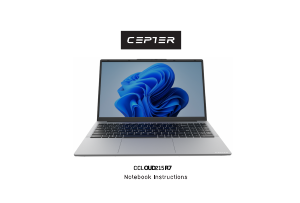
Käyttöohje Cepter CEPULSE Pulse Kannettava tietokone

Liittyvät tuotteet

Aiheeseen liittyvät luokat

×
Download